How to run a manual update file
For customers still using the old product updates method, or for customers running promos or manual rangelists, this tutorial will show you how to run a manual update on your Point of Sale software.
Most customers these days receive automatic product updates from our UPR (Universal Product Register), which makes the following unnecessary. If you would like to start recieving automatic updates, contact POS support and they’ll book you in for an update.
PLEASE NOTE: If you have never done this before in your Point of Sale, DO NOT RUN A MANUAL UPDATE, instead call POS support and have them help you out. This is as your product updates need to be tailored to your stores pricing methods and your stock file.
Step 1.
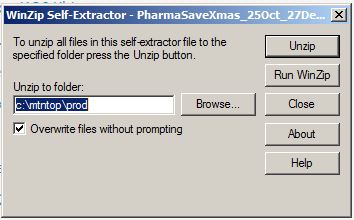
On your main POS computer download the correct file from the website and unzip it’s contents.
Contents should end up in c:\mtntop\prod.
Step 2.
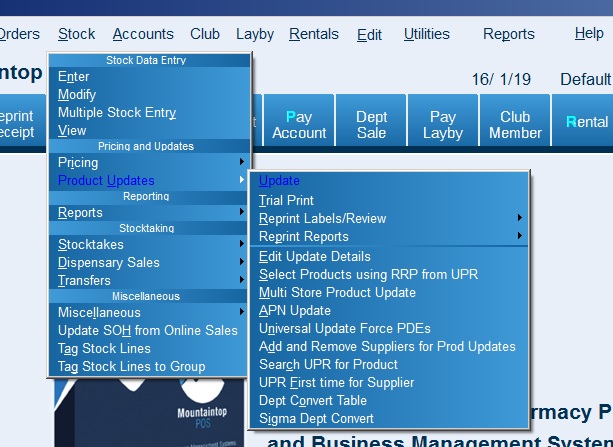
Open POS, click the Stock menu and then Product Updates, then Update.
Step 3.
Scroll down to the line Numb of the update type you’re intending to run and select the line.
Step 4.
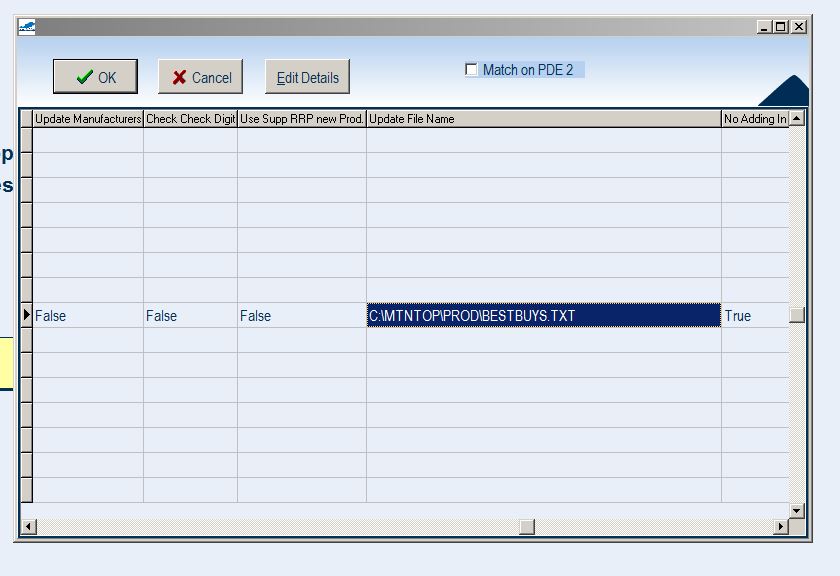
Click Edit Details, then using the right arrow key, move across to the Update File Name column. Edit this field to match the location and file name of the files you unzipped earlier. (i.e c:\mtntop\prod\filename.filetype).
Also change the Supplier Number to match the supplier in POS. If you’re frequently running catalogues for a supplier, this wont need changing each time.
Step 5.
Click OK. If prompted to choose your own departments, click no unless you’ve been instructed otherwise.
NOTE: Type 37 Promotional updates will additionally ask you to enter the start and stop dates of the promotional catalogue you’re currently running.